
AI moves quickly, so specific features and prices will change. This guide focuses on the practical differences that last: what each assistant is built for, where it fits, and what to check before you roll it out.
This is not a technical benchmark or a scorecard of model quality. It is a decision guide for leaders choosing a tool for real business use.
In our last insight we looked at where AI can create value first. One of the lowest-friction starting points is the everyday productivity layer: the assistants people are already hearing about. This insight goes a step further and looks at how the main tools differ, and how to choose between them.
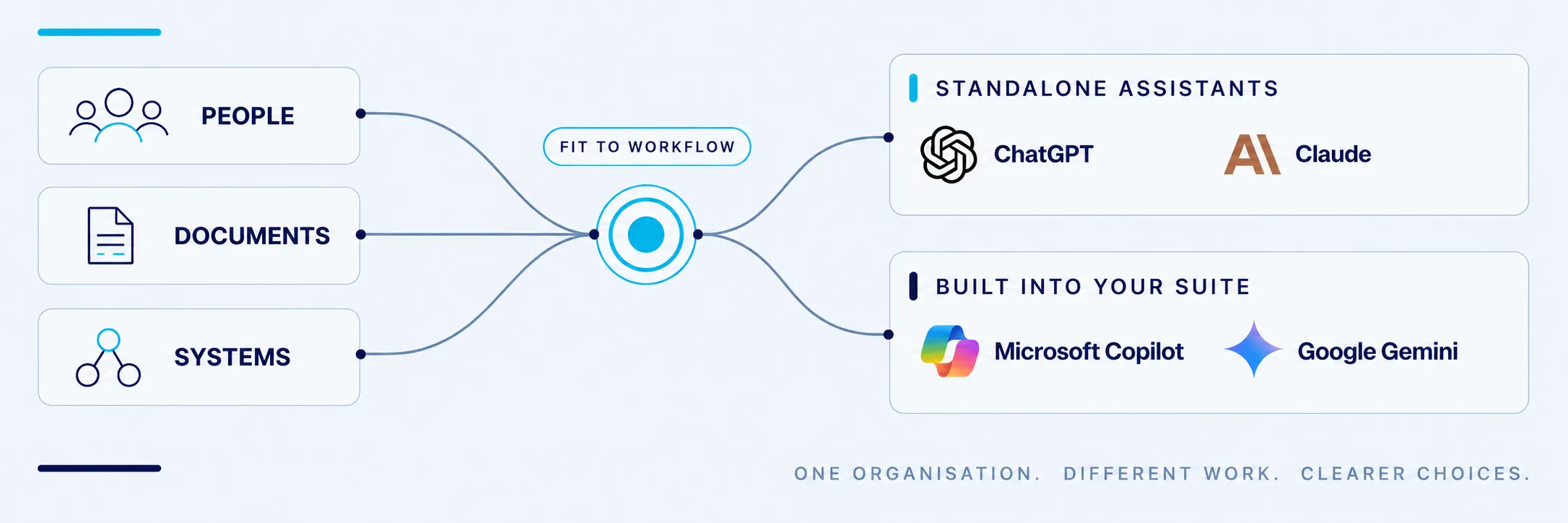
For most organisations, the real question is not “which AI assistant is best?” It is “which assistant fits our people, our data, our systems and our appetite for risk?”
That distinction matters. A tool that works brilliantly for one team can be a poor fit for another. A free personal account may look impressive in a quick test, but it may not give a business the controls, privacy commitments or oversight it needs. An assistant built into your existing Microsoft or Google environment may be easier to roll out, but less flexible for specialist work.
The real decision: business fit, not just model quality
Most comparisons focus on which assistant gives the “best” answer. That is useful, but only up to a point. The models are all capable, they improve constantly, and the gaps between them keep narrowing.
For business adoption, these questions matter more:
- What work are people actually trying to improve?
- What information will the assistant need to see?
- Do you already run on Microsoft 365, Google Workspace or another core suite?
- What level of admin control, security and oversight do you need?
- Are people experimenting individually, or is this a managed rollout?
- How will people be trained to use the tool well and safely?
The value comes from better workflows, faster decisions and less manual effort, not from the model on its own. So tool choice should be tied to business outcomes, not technical preference.
Two types of assistant, in plain English
It helps to split the main tools into two groups, because they solve slightly different problems.
Standalone assistants are general-purpose tools you go to for a wide range of work: drafting, analysis, research, document review, coding and more. ChatGPT and Claude are the two leading examples. They are not tied to one productivity suite, which makes them flexible. Traditionally that also meant they sat alongside your other tools rather than inside them, though that line is blurring quickly as they add integrations into the Office apps and connect to your own files and systems.
Suite assistants are built directly into the productivity tools people already use all day. Microsoft Copilot lives inside Microsoft 365 (Outlook, Teams, Word, Excel, PowerPoint, SharePoint). Google Gemini plays the same role inside Google Workspace (Gmail, Docs, Sheets, Slides, Drive). Their strength is not the model, it is that the AI appears where the work already happens.
Most organisations end up using at least one of each type. The rest of this guide looks at each in turn.
ChatGPT vs Claude: the standalone head-to-head
ChatGPT and Claude are the two tools most people mean when they say “AI assistant”. Both are strong general-purpose tools. The differences are ones of emphasis rather than one being clearly better.
ChatGPT is the more flexible all-rounder. It combines chat, document creation, data analysis, coding, web browsing and image generation in one place, which makes it a strong general AI workspace for teams exploring lots of different use cases. It suits organisations that want breadth: a single tool that can support many roles and a wide range of tasks.
Claude tends to be stronger on careful, document-heavy work. It is well regarded for natural writing that can match a house style, structured reasoning, and working through long or complex material such as reports, policies, proposals and board papers. It is also widely used for coding and hands-on technical work. The main gap to be aware of is that Claude does not generate ordinary photographic or illustrative images, where ChatGPT does.
A useful way to frame it: ChatGPT is often the better fit when you want one broad, do-everything assistant. Claude is often the better fit when writing quality, long-document analysis and technical work matter most.
| What you care about | ChatGPT | Claude |
|---|---|---|
| General, everyday productivity | Strong all-rounder | Strong, with a writing and analysis bias |
| Long documents and careful reasoning | Good | Often the stronger of the two |
| Writing that matches your style and tone | Good | Often the stronger of the two |
| Coding and technical work | Strong | Strong |
| Creating images | Yes | No image generation |
| Working inside Word, Excel, PowerPoint and Outlook | Partial (mainly Excel and PowerPoint) | Fuller coverage across the Office apps |
| Taking on a whole task, not just answering a question | Yes | Yes |
| Connecting to your own files and systems for better context | Growing, more curated | Broad and open, via connectors |
| Seeing how much of your usage allowance you have left | Harder to track | Clearer usage view |
A few of those rows are worth translating out of the jargon:
“Working inside your Office apps” means using the assistant directly in Word, Excel, PowerPoint and Outlook (through what vendors call add-ins), rather than copying text back and forth into a separate window. Both tools are improving here. Claude currently reaches across more of the Office apps for an individual user, including Outlook.
“Connecting to your own files and systems” means letting the assistant see your context, such as a folder of documents, a database or an internal tool, so its answers are grounded in your information rather than general knowledge. Claude’s approach here (built on an open standard called MCP) is currently broad and flexible. ChatGPT’s is growing but more curated around supported integrations.
“Taking on a whole task” means giving the assistant a job made up of several steps (“read these five documents and draft a summary paper”), not just a single question. Both now offer this on the desktop. It is the direction all these tools are heading.
“Usage allowance” matters more than people expect. Neither tool is truly unlimited. How much you can do before hitting a limit depends on the model, the length of the conversation and how much you upload. Heavy document analysis or long coding sessions use it up faster. Claude currently gives a clearer view of how much of your allowance is left and when it resets, which makes limits easier to manage.
Choosing and rolling out these tools well is exactly what our GenAI training for business teams is built to support, from selecting the right tool to helping people use it safely and effectively. This guide stays at the level a leader needs to make the choice.
Copilot and Gemini: AI inside the tools you already use
Microsoft Copilot and Google Gemini belong in a different category. Their advantage is not the model, it is integration. The AI sits inside the applications your people already use every day.
Microsoft Copilot has a clear advantage where most day-to-day work happens in Microsoft 365. It can summarise Teams meetings and suggest follow-up actions, draft and edit documents, help with email in Outlook, support presentations in PowerPoint, work with data in Excel, and surface information from across SharePoint and OneDrive, subject to each user’s permissions. The main benefit is low adoption friction: people do not have to move into a separate tool.
That same integration is also where the main risk sits. Copilot makes existing content much easier to find. If your file permissions and information management are messy, Copilot will not create a data breach, but it will make weak permissions and out-of-date content more visible, faster. For many organisations, tidying up permissions and content is sensible preparation before a wide Copilot rollout.
Google Gemini plays the same role for organisations built around Google Workspace, bringing AI into Gmail, Docs, Sheets, Slides, Meet and Drive. If Google is your main environment, Gemini should be assessed in the same way you would assess Copilot in a Microsoft one.
One point leaders often miss on cost: Copilot and Gemini are usually add-ons to a paid productivity licence, so the real per-person cost is higher than the headline add-on price suggests. Standalone tools like ChatGPT and Claude are priced on their own.
One caution before assuming the suite assistant wins by default: integration is no longer unique to Copilot and Gemini. Standalone assistants, Claude in particular, now work inside the Office apps and can connect to your own files and systems, so running on Microsoft 365 or Google Workspace does not automatically settle the choice. Where the assistant sits still matters, but the nature of the work should carry as much weight.
A notable mention: Perplexity
Perplexity is worth knowing about, but it sits in a slightly different category again. It is closer to an AI-powered research and answer engine: strong at searching current information and returning answers with sources attached. That makes it useful for market research, fact-finding and quick, cited answers.
It is less of a general work assistant than ChatGPT or Claude, and less embedded than Copilot or Gemini. For many businesses it is a useful supplementary tool for research rather than the main assistant people work in day to day.
At a glance
| Tool | Category | Often the best fit when… | Main thing to watch |
|---|---|---|---|
| ChatGPT | Standalone assistant | You want one flexible, do-everything tool across many use cases | Needs clear governance and approved account types |
| Claude | Standalone assistant | Writing quality, long documents and technical work matter most | No image generation |
| Microsoft Copilot | Inside Microsoft 365 | Most work already happens in Outlook, Teams, Word, Excel and SharePoint | Exposes weak permissions and old content; check readiness first |
| Google Gemini | Inside Google Workspace | Google Workspace is your main environment | Same permissions and governance questions as Copilot |
| Perplexity | Research / answer engine | You want fast, sourced answers and current information | Not a full general-purpose work assistant |
Consumer vs business accounts: the difference that catches people out
Many organisations think they are comparing ChatGPT, Claude and Copilot. In reality, they are often comparing unmanaged personal use with managed business use. That is a bigger difference than the brand name.
A personal account is designed for individual use. It may have limited admin control, limited oversight and different data settings. It can be fine for personal tasks, but it is not automatically appropriate for confidential business information.
A business or enterprise account is designed for managed organisational use. It is more likely to include stronger privacy commitments, admin controls, security features and clearer contractual terms.
The practical test is simple: the wrong version of the right tool can still create risk. Someone pasting confidential client information into a personal account is a very different situation from a managed business workspace with agreed privacy terms and controls. That distinction should be made clear before rollout.
Privacy and data: what to check
This is where many AI conversations get confused, and it deserves a fuller treatment than we can give it here. Our practical guide to AI and data privacy for business explains what happens to information shared with AI tools and what organisations should check before uploading anything. For choosing a tool, the key points are these.
When leaders ask “where does our data go?” or “will our prompts be used to train the model?”, the honest answer is: it depends on the product, the plan and the settings. Personal and business tiers of the same tool can behave very differently.
One current example makes the point. On Claude’s personal plans (Free, Pro and Max), your conversations are used to help improve the model by default unless you turn that setting off. Its business and enterprise tiers are not used for training by default. ChatGPT and Copilot each have their own rules across their consumer and business tiers, and Copilot within Microsoft 365 is governed by your organisation’s own agreement. The specifics change over time, which is exactly why they should be checked against the current plan rather than assumed.
Before rollout, it is worth confirming, for the specific plan you will use:
- whether prompts and uploaded files are used for training, and whether you can turn that off
- whether data is encrypted in transit and at rest
- whether it supports single sign-on and admin controls
- whether the tool respects your existing document permissions
- whether data location, retention and compliance commitments meet your requirements
The aim is not to block AI. It is to make safe, useful adoption easier.
Common mistakes when rolling out AI assistants
Comparing free tools instead of business services. A quick test on personal accounts is useful, but it is not a business evaluation. The controls and data terms are different.
Choosing a tool before defining the outcome. “Give everyone AI” is not a strategy. “Reduce the time spent summarising meetings and drafting routine documents” is something you can actually deliver against.
Ignoring information governance. Copilot and Gemini make existing content easier to find. That is powerful, but it can also expose poor permissions and outdated files.
Assuming people know how to use AI well. Good use is not just typing questions into a box. People need to understand how to brief the tool, check its answers and protect data.
Treating AI output as automatically correct. Outputs should be checked, especially where the work affects customers, compliance, finance or reputation.
Measuring licences rather than value. Success is not how many people have access. It is time saved, quality gained and rework avoided.
A practical way to choose
The best starting point is not a long technical assessment. It is a short, structured conversation. Work through these questions in order:
- Where is the real workload or decision you want to improve? Start from the problem, not the tool.
- Where does most of that work already happen? If most of it is inside Microsoft 365 or Google Workspace, your suite assistant (Copilot or Gemini) is a strong candidate for broad, organisation-wide productivity. Bear in mind, though, that standalone assistants now integrate into those same apps, so this points you in a direction rather than deciding it.
- Do you need flexibility, or depth on particular work, for example varied analysis, reusable ways of working, high-quality writing or specialist tasks? If so, a standalone assistant (ChatGPT or Claude) earns its place, even if you run on Microsoft 365 or Google Workspace.
- Is the priority breadth or depth? For a broad, do-everything tool, lean ChatGPT. For writing quality, long-document analysis and technical work, lean Claude.
- What governance do you need to make this safe? Approved account types, clear data rules and output checking.
The right answer may well be a combination: a suite assistant for everyday productivity across the organisation, and a standalone assistant for teams that need more. That is a sound approach, as long as it is a deliberate decision rather than tools spreading by accident.
Common questions
Is ChatGPT or Claude better for business?
Neither is simply better; it depends on the work. ChatGPT is the more flexible all-rounder and suits teams that want one do-everything tool across many use cases. Claude tends to be stronger for writing quality, long-document analysis and technical work. Many organisations end up using both.
Should we use Microsoft Copilot or ChatGPT?
If most of your work already happens in Microsoft 365 (Outlook, Teams, Word, Excel, SharePoint), Copilot has the advantage of organisation-wide, permission-aware integration, with low adoption friction. ChatGPT is more flexible for varied work, and now integrates into the Office apps and connects to your own systems too, so it is not limited to work outside the Microsoft suite. They are not mutually exclusive: a suite assistant for everyday productivity, plus a standalone assistant for teams that need more, is a common and sensible split.
Can I use a personal ChatGPT or Claude account for work?
A personal account can be fine for general, non-sensitive tasks, but it is not automatically appropriate for confidential business information. Personal plans often have limited admin control and different data settings. For managed workplace use, a business or enterprise account gives you stronger privacy commitments, admin controls and clearer contractual terms.
Which AI assistant is best if we run on Microsoft 365?
There is no automatic answer. Microsoft Copilot is a strong candidate because it works inside the apps your team already uses, with organisation-wide, permission-aware integration. Before a wide rollout, check your file permissions and content, because Copilot makes existing content much easier to find and will surface weak permissions faster. That said, a Microsoft environment does not rule out the alternatives: standalone assistants like Claude and ChatGPT now reach into the Office apps and connect to your own systems too, and can be the better fit where writing quality, analysis or flexibility matter. Many organisations use Copilot for broad productivity and a standalone assistant alongside it.
Does ChatGPT or Claude train on my data?
It depends on the product, the plan and the settings. As an example, on Claude’s personal plans your conversations are used to help improve the model by default unless you turn that setting off, while its business and enterprise tiers are not used for training by default. ChatGPT and Copilot each have their own rules across consumer and business tiers, so always check the current terms for the specific plan you will use.
What about Gemini and Perplexity?
Google Gemini is the suite assistant for organisations built around Google Workspace, and should be assessed in the same way you would assess Copilot for Microsoft 365. Perplexity is closer to a research and answer engine, useful for quick, sourced answers rather than as a main work assistant. Both are worth knowing about, but for most businesses the core choice is still between the two categories above.
A final thought
AI assistants can help people work faster, think more clearly and spend less time on manual effort. But the value does not come from the tool alone. It comes from choosing the right use cases, setting clear guardrails, handling data properly and helping people adopt AI in a way that fits the organisation.
The strongest rollouts are rarely the loudest. They are the ones that make work easier, safer and more consistent.
Want your team to get better results from the tool you choose? Our GenAI training for business teams helps people prompt well, check outputs and use AI safely.